
Table of Contents
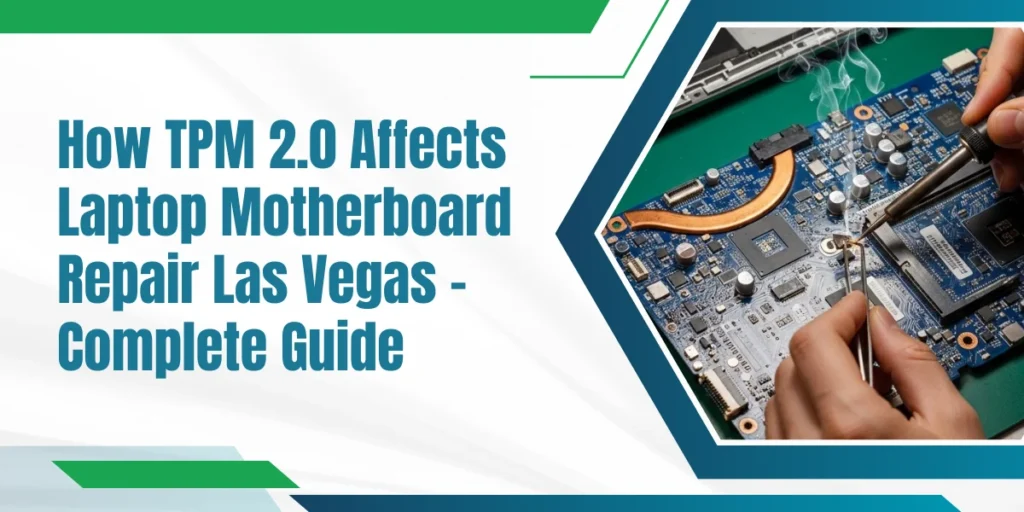
How TPM 2.0 Affects Laptop Motherboard Repair Las Vegas – Complete Guide
You just finished a simple upgrade or replaced a component, and suddenly your laptop refuses to start. A cryptic TPM error flashes on the screen, leaving you stuck. For anyone searching for laptop motherboard repair Las Vegas, this tiny chip – TPM 2.0- can turn an easy fix into a full-blown problem.
Built to protect your data on Windows 11, TPM 2.0 is powerful but sensitive. In this guide, we’ll break down what TPM 2.0 does, why it can lock your system, and how to handle it safely.
What is TPM 2.0?
For the people who do not know, TPM 2.0 stands for Trusted Platform Module version 2.0. It is a security feature built directly into the laptop’s motherboard or firmware. Its purpose is to store important security information such as encryption keys and system identity data.
There are two main types of TPM:
- Hardware TPM, which is a physical chip on the motherboard
- Firmware TPM, which runs inside the system firmware
Both types serve the same role. They help the laptop confirm that the system has not been changed in an unsafe way.
What Does TPM 2.0 Actually Do?
TPM 2.0 quietly checks your laptop every time it starts. It verifies that:
- The BIOS has not been altered
- The boot process is trusted
- The storage drive matches the original system
If something looks different, TPM may block access. This is why users sometimes see sudden login screens or recovery prompts after repairs. These TPM 2.0 laptop issue cases are common and often misunderstood.
Why TPM 2.0 Became Mandatory
TPM 2.0 became mandatory mainly because of rising security threats. Microsoft reports show that firmware-level attacks increased sharply over the last decade. To reduce this risk, Windows 11 requires TPM 2.0 on supported systems.
This decision improved security but also caused frustration. Many users now see “laptop not compatible with Windows 11“ messages because their systems lack TPM support or have it disabled.
TPM 2.0 and Disk Encryption (BitLocker)
TPM 2.0 works closely with BitLocker drive encryption. BitLocker locks the storage drive and only unlocks it when TPM confirms everything is safe.
If TPM detects:
- A motherboard change
- A BIOS reset
- A firmware update
It may require a recovery key. This is one of the most common reasons users face Windows lockouts after repairs.
TPM 2.0 Impact on Common Laptop Repairs
TPM 2.0 adds a strong layer of security, but it also affects how certain laptop repairs should be handled. When hardware changes are made without proper preparation, TPM can block access, trigger encryption locks, or prevent the system from booting. Below is how TPM impacts common laptop repairs.
a. Motherboard Replacement
Motherboard replacement is the most sensitive repair when TPM 2.0 is active because encryption keys are tied to the original board. When the motherboard is replaced:
- TPM keys are permanently lost
- BitLocker may block system access
- Data can become unrecoverable without backups
This is why technicians must always check encryption status, warn customers about risks, and back up data before starting repairs.
| Motherboard Repair Support If your laptop fails to boot after a board replacement, professional laptop motherboard repair Las Vegas services can safely diagnose TPM conflicts and prevent permanent data loss. |
b. SSD or HDD Replacement
Replacing a storage drive can trigger TPM security checks and BitLocker recovery. Common issues include:
- Recovery key prompts during startup
- Inaccessible data despite a working drive
- Users assume data loss
TPM detects the drive change as a security event. Verifying BitLocker status and securing the recovery key before replacing the drive helps avoid lockouts and unnecessary data recovery.
c. BIOS or Firmware Updates
BIOS or firmware updates often reset TPM settings, which can disrupt system security. This may cause:
- Secure Boot errors
- TPM not detected warnings
- Startup or boot failures
Without proper configuration, systems may fail to load Windows. Using a professional laptop BIOS repair service ensures TPM settings are preserved and correctly restored after updates.
d. CPU or Major Hardware Changes
Major hardware changes can trigger TPM protection mechanisms. When components like CPUs are replaced:
- TPM may flag the system as compromised
- BitLocker recovery can be enforced
- Boot restrictions may occur
Reviewing TPM and encryption settings before hardware upgrades helps prevent access issues, encryption lockouts, and unexpected system downtime.
TPM Reset: What It Is and When It’s Required
Clearing or resetting TPM removes all stored security keys. This is sometimes required after repairs, but it must be done carefully.
Before resetting TPM:
- Data must be backed up
- Recovery keys must be saved
Skipping these steps often leads to permanent data loss.
TPM 2.0 and Data Recovery Challenges
TPM 2.0 has made data recovery much more difficult than before. In older laptops, technicians could often remove the hard drive and recover files using another system. With TPM and BitLocker encryption, this method usually no longer works.
Some key challenges include:
- Encrypted drives that appear blank on other systems
- No access without the correct recovery key
- Encryption tied to the original motherboard TPM
- Recovery software failing to detect usable data
Even if the drive itself is healthy, TPM protection can block access completely. This is why many users lose data after motherboard or firmware repairs. Professional laptop firmware repair services understand these limits and focus on prevention rather than risky recovery attempts.
TPM Errors and Common Repair-Related Issues
TPM-related errors often appear suddenly and confuse users. These problems usually happen after repairs, updates, or hardware changes.
Common TPM-related issues include:
- “TPM device not detected” after BIOS updates
- BitLocker is asking for a recovery key on startup
- Windows are entering automatic repair loops
- Secure Boot errors after firmware changes
- Windows refuses to activate or load properly
Many of these cases fall under Windows 11 TPM error repair and require careful diagnosis. Rushing to reset TPM without preparation often makes the problem worse instead of fixing it.
How Technicians Should Handle TPM-Enabled Laptops
At Eastern Laptop Repair, technicians treat TPM-enabled laptops with extra care, especially as Windows 11 systems become more common. Before starting any repair, security checks are always verified to avoid unnecessary data loss or access issues.
Our technician practices include:
- Checking whether BitLocker encryption is active
- Requesting recovery keys from customers in advance
- Creating full data backups before motherboard or BIOS repairs
- Clearly explaining TPM-related risks before work begins
- Avoiding unnecessary TPM resets whenever possible
These steps help our technicians reduce data loss, prevent customer frustration, and avoid repair delays during sensitive motherboard and system-level repairs.
| If your laptop shows TPM warnings, BitLocker recovery screens, or Windows 11 errors, contact a trusted laptop motherboard repair Las Vegas specialist today for safe and reliable support. Contact us now |
TPM 2.0 Settings in BIOS/UEFI
TPM settings are usually found inside the BIOS or UEFI menu. Small changes here can have a big impact on system access.
Important BIOS-related TPM points:
- Intel systems use Intel PTT
- AMD systems use fTPM
- Disabling TPM may block Windows 11
- Switching TPM modes can trigger BitLocker
Many users accidentally cause laptop not compatible Windows 11 errors by changing BIOS settings without understanding TPM. A trusted laptop BIOS repair service can restore correct settings safely.
TPM 2.0 Facts vs Myths: What You Need to Know
Many myths about TPM 2.0 cause unnecessary fear.
| Common TPM 2.0 Myths | The Reality |
| TPM tracks personal activity | TPM does not collect personal files |
| TPM sends data to Microsoft | TPM only stores security and encryption keys |
| TPM prevents all laptop repairs | Repairs are possible with proper preparation |
| TPM can be safely ignored | Ignoring TPM increases the risk of data loss |
Legal and Ethical Considerations in Repairs
TPM protects user data, so ethical repair practices are very important. Technicians should never attempt to bypass TPM security or access encrypted data without permission.
Key ethical points include:
- Customers own their recovery keys
- Data access requires consent
- TPM bypass attempts can violate privacy laws
- Proper documentation protects both sides
Following these rules builds trust and professionalism in laptop motherboard repair Las Vegas services.
Best Practices for Laptop Owners Before Repair
Laptop owners play an important role in TPM safety. Preparing before a repair can prevent most problems.
Recommended best practices:
- Save BitLocker recovery keys to a safe location
- Back up important files to external storage
- Check if TPM and BitLocker are enabled
- Inform the repair shop about encryption
- Ask questions before motherboard or BIOS repairs
These simple steps can save hours of stress and prevent permanent data loss.
Eastern Laptop Repair: Trusted TPM-Safe Solutions
Eastern Laptop Repair follows careful processes when handling TPM-enabled laptops. Their technicians understand how security features interact with hardware repairs.
Why Eastern Laptop Repair Is Reliable:
- Strong 20 years of experience with TPM 2.0 systems
- Safe handling of encrypted drives
- Careful BIOS and firmware repair methods
- Honest advice before risky repairs
- Clear communication with customers
This approach reduces TPM-related failures and ensures Laptop Motherboard Repair Las Vegas is handled safely and professionally.
Final Thoughts
TPM 2.0 offers strong protection but adds complexity to laptop repairs. With professional Laptop Motherboard Repair Las Vegas services, TPM issues can be resolved safely without data loss. Proper preparation, clear communication, and expert handling are essential. Experiencing TPM errors, BitLocker prompts, or Windows 11 problems? Contact us today for trusted and reliable repair support.