
Table of Contents
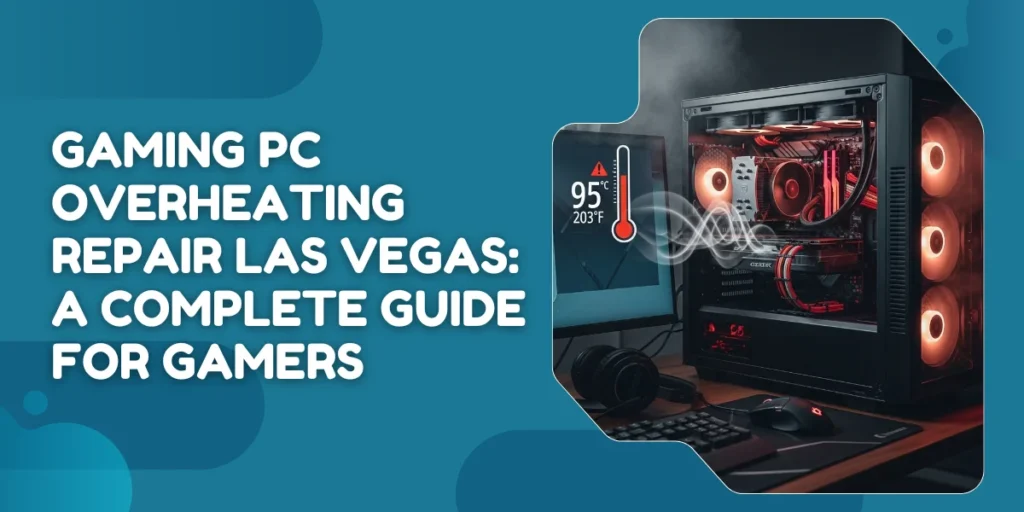
Gaming PC Overheating Repair Las Vegas: A Complete Guide for Gamers
You sit down to enjoy your favorite game. Everything looks fine at first. Then the fans get louder. The frame rate drops. A few minutes later, the system freezes or shuts down. This is a common story for many gamers searching for gaming PC overheating repair Las Vegas.
Overheating does not happen suddenly. It builds up over time, often quietly, until performance starts to suffer. This practical guide walks you through the main reasons, warning signs, and effective solutions.
What Temperatures Are Normal While Gaming?
Before calling something a problem, it helps to know what is normal.
Safe Temperature Ranges
| Component | Normal While Gaming | Too Hot |
| CPU | 60°C to 80°C | Above 85°C |
| GPU | 65°C to 85°C | Above 90°C |
Short spikes are normal. However, steady heat above safe limits is not.
Studies show that long gaming sessions at high heat can reduce hardware lifespan by up to 30 percent. That is why temperature monitoring matters.
Common Signs Your Gaming PC Is Overheating
Overheating does not always mean instant shutdown. Many warning signs appear first.
- Sudden FPS drops during gameplay
- Loud or constant fan noise
- Game stuttering or freezing
- Black screen or forced restarts
- Gaming PC shutting down without warning
Another major issue is gaming PC thermal throttling, where your system slows itself down to prevent damage. This protects hardware but hurts performance.
Common Causes for High CPU and GPU Temperatures During Gaming
High GPU temperatures can be caused by many factors, from basic environmental issues to more serious hardware limitations. Knowing what drives these temperature spikes is the first step to fixing problems and keeping your CPU and GPU performing smoothly.
1. Poor Airflow Inside the Case
When air cannot circulate properly, hot air gets trapped around components. This raises internal temperatures fast, especially during gaming sessions that push both CPU and GPU continuously.
2. Dust Buildup
Dust buildup blocks vents and fan blades, reducing cooling efficiency. It traps heat like insulation, which is why dusty systems often run 10 to 20°C hotter than properly cleaned PCs.
3. Old or Dry Thermal Paste
Thermal paste transfers heat from chips to coolers. When it dries out, heat transfer becomes inefficient, causing the CPU and GPU to retain more heat under load.
Is your CPU overheating? Expert inspection can fix thermal paste or cooling issues to keep your PC stable. Repair CPU Now |
4. Weak Cooling Hardware
Stock coolers are not designed for heavy gaming. Without proper gaming PC cooling, cooling hardware struggles to manage sustained heat from modern games.
5. High Room Temperature
PC cooling depends on room air. When ambient temperature rises, fans pull in warmer air, making it harder to cool components and increasing overall system temperatures.
6. Heavy Background Tasks
Extra software running in the background increases the processor workload. This keeps the CPU active even during gameplay, leading to high CPU temperature gaming issues over time.
7. GPU Under Constant Load
Modern games heavily stress graphics cards. When cooling is limited, long gaming sessions force the GPU to run hot, making high GPU temperature gaming hard to avoid.
Step-by-Step Troubleshooting and Solutions
After identifying the possible causes, it’s important to address them in an organized way. This helps lower CPU and GPU temperatures, improve performance, and reduce the risk of the gaming PC shutting down during demanding sessions.
Step 1: Monitor and Record Baseline Temperatures
Before making any changes, understand how hot your system is currently running. These baseline readings will help you track real improvements.
- Install monitoring software
Use tools like MSI Afterburner or HWMonitor to track real-time CPU and GPU temperatures, fan speeds, clock rates, and usage. - Run a stress test or a heavy game
Play a graphically demanding game for at least 30 minutes or use tools such as FurMark, Heaven Benchmark, or 3DMark to simulate full load conditions. - Record temperature data
Note the maximum and average temperatures under load. Also, check idle temperatures after the system rests for 10–15 minutes, along with fan speed behavior.
Step 2: Clean the PC and Internal Components
Dust is a major contributor to overheating and can affect both the processor and graphics card. Cleaning is often the fastest and most effective fix.
- Power down safely
Turn off the PC, unplug it from the wall, and press the power button briefly to discharge leftover power. - Open the case
Remove the side panels to access internal components easily. - Remove dust with compressed air
Blow dust out of case fans, CPU cooler, GPU fans, and heatsinks using short bursts. Hold fan blades still to prevent damage. - Clean dust filters
Remove any case filters, clean them thoroughly, and allow them to dry completely before reinstalling. - Reassemble and retest
Close the case, power the system back on, and rerun your stress test to compare temperatures. If heat issues persist, professional gaming PC overheating repair Las Vegas services may be required.
Step 3: Optimize Case Airflow
Proper airflow allows cool air to reach components and hot air to exit efficiently, keeping both CPU and GPU temperatures under control.
- Check fan direction
Front and bottom fans should pull air in, while rear and top fans should push hot air out. Look for airflow arrows on fan frames. - Add additional fans if needed
If the case supports more fans, installing them can significantly improve air circulation and heat removal. - Improve cable management
Route cables behind the motherboard tray and away from airflow paths to prevent heat buildup. - Review case placement
Make sure the PC has enough space around it and is not pushed tightly against walls or furniture.
If overheating continues despite these steps, a professional gaming PC cooling service can help with advanced cooling upgrades and long-term thermal stability.
How to Check CPU and GPU Temperatures
Knowing your temperatures helps you act early.
- Use built-in system monitoring tools
- Use free temperature tracking software
- Check temps during actual gameplay, not idle time
Watch for steady heat rather than short spikes.
How to Prevent Overheating in the Long Term
Prevention keeps your system stable and quiet.
- Clean the PC regularly
- Monitor temperatures monthly
- Update drivers and system firmware
- Avoid unnecessary overclocking
- Keep the gaming area well ventilated
If problems continue, gaming PC overheating repair Las Vegas professionals can diagnose hidden issues before they cause lasting damage.
For expert guidance or inspection, contacting a repair specialist is often the safest next step: Contact Now |
Final Thoughts
Gaming should be smooth, immersive, and fun. Heat ruins that experience slowly and quietly. Learning the causes and signs helps you act early. Whether it is airflow, dust, or cooling failure, solutions exist.
If problems continue, gaming PC overheating repair Las Vegas services provide safe and lasting fixes that protect your system. With proper care, your gaming PC can stay cool, stable, and ready for every session.
For expert help, call us now or contact us to schedule a repair and keep your system performing at its best.