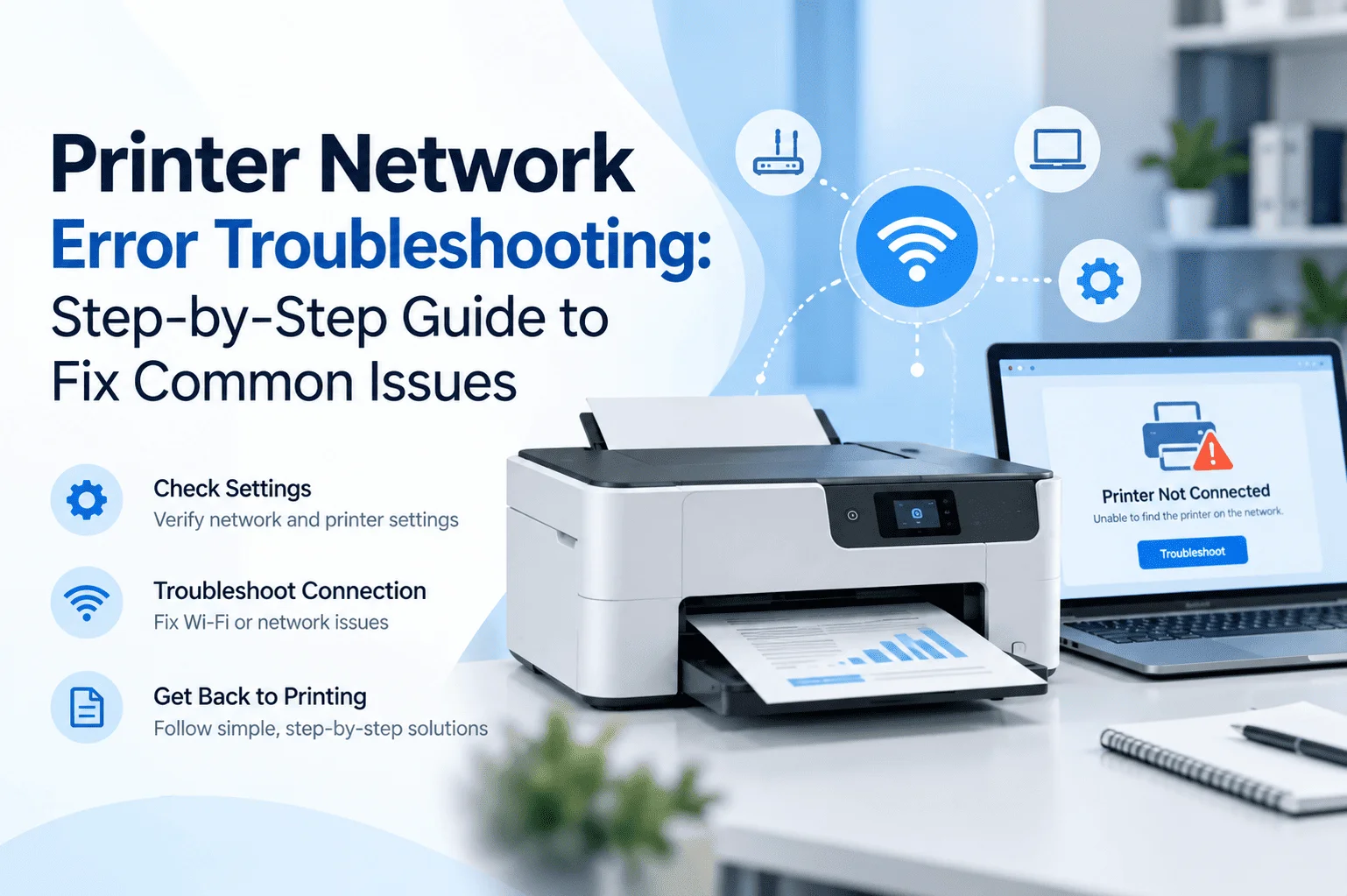

If you are dealing with an antivirus blocking printer connection issue, it usually appears without warning. One moment everything works fine, and the next your printer stops responding or disappears from the network. This problem is more common than most people think, especially after system updates or security changes.
According to a report by Statista, over 60% of home users rely on wireless or network printers today, which increases the chances of connection conflicts when security tools are active. In most cases, the problem is not hardware failure but software interference.
Why Your Printer Stops Working Suddenly
Modern printers rely on continuous communication between your computer and network. Antivirus tools and firewalls monitor this communication closely. When something looks unfamiliar, they may restrict it.
This is how an antivirus blocking printer connection situation often begins. A simple update or security scan can interrupt communication without any visible warning, making the printer seem offline even when it is fully functional.
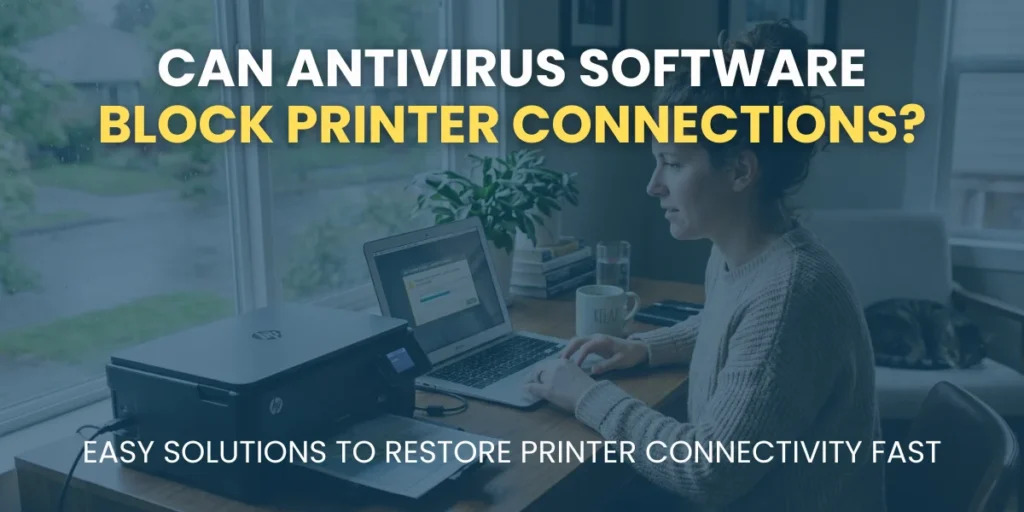
Can Antivirus Software Really Block Printer Connections?
Yes, it can indirectly block printer communication. Antivirus software does not intentionally stop printers, but it can restrict network traffic, shared device access, or unknown ports, leading to an antivirus blocking printer connection issue.
In many cases, users experience a printer blocked by a firewall or antivirus issue after installing updates or enabling stricter protection modes.
Why Antivirus Blocks Printers
Overstrict Firewall Rules
The firewall may view the connection between your computer and the printer as unauthorized, especially if the network profile is set to “Public” instead of “Private/Home”.
Network Port Protection
Security software may block common printing ports (such as TCP 9100, 631, or 515) that it deems unsecured.
Interference with Drivers/Spooler
The software may block the print spooler (spoolsv.exe) or the software driver, preventing it from functioning properly.
Sudden “Offline” Status
If the printer was working but suddenly stops, the firewall may have updated and revoked permission for the printer’s IP address.
How Security Software Interferes With Printing
1. Network scanning and traffic filtering
Antivirus tools inspect all incoming and outgoing data. If printer traffic looks unfamiliar, it may be delayed or blocked, creating an antivirus blocking printer connection situation.
2. Firewall rules blocking ports
Printers depend on network ports like 9100 or SMB sharing protocols. If these ports are restricted by firewall rules, the printer cannot communicate with your system properly.
3. Device trust settings
Some antivirus programs require manual approval for devices. If your printer is not marked as trusted, communication may remain blocked even if it is connected correctly.
This is where antivirus software preventing printer communication becomes a real issue for many users.

Common Signs Your Printer Is Being Blocked
- The printer shows offline despite being turned on
- Print commands stay stuck in the queue
- The printer disappears from the network devices
- Wi-Fi printing stops after antivirus updates
How to Fix Printer Not Connecting Due to Security Software
Step 1: Allow the printer through firewall settings
You need to open firewall settings and manually allow printer communication. This ensures your system recognizes printer traffic as safe and resolves many antivirus blocking printer connection issues.
Step 2: Check antivirus device permissions
Most modern antivirus programs include a trusted devices or application control section. Here, you must manually approve your printer or network sharing service. If not approved, the antivirus may continue blocking communication silently.
Step 3: Verify network discovery settings
Network discovery allows your computer to find other devices, like printers. If disabled, the printer will not appear even if connected. Enabling it restores proper detection and reduces antivirus blocking printer connection conflicts on shared networks.
Step 4: Reset the print spooler service
The print spooler manages all print jobs in Windows. If it gets stuck due to antivirus interference, restarting it clears the queue and refreshes communication between your computer and printer. This step often resolves hidden software conflicts quickly.
Step 5: Reinstall printer drivers
Printer drivers act as a bridge between hardware and software. If corrupted after security updates, reinstalling ensures proper communication and fixes ongoing antivirus blocking printer connection issues caused by outdated driver conflicts.
Advanced Fixes for Persistent Issues
If basic steps do not work, deeper system or network adjustments may be needed.
- Adjust network security rules
Some routers or office networks apply strict filtering. This is known as network printer security restrictions, and it can silently block devices.
- Assign a static IP to the printer
Dynamic IP changes often confuse firewall rules. A static IP keeps the printer consistently reachable.
- Check router firewall settings
Some routers have built-in security layers that block unknown devices automatically.
When to Consider Printer Repair or Technical Help
If your printer still does not respond after configuration changes, the issue may not be software-related. Hardware faults, outdated firmware, or corrupted network modules can also cause similar symptoms.
At this stage, a professional printer check can save time and prevent unnecessary system changes.
| If your printer keeps disconnecting or not responding, getting it checked by a technician can help you quickly identify whether it is a hardware or network issue. Printer Repair Support |
Preventing Future Printer Connection Problems
To avoid repeating the same issue:
- Keep antivirus settings balanced, not overly strict
- Regularly update printer firmware
- Assign a fixed IP address for network printers
- Review firewall rules after major updates
- Avoid installing multiple security tools at once
These small steps reduce the chance of another antivirus blocking the printer connection in the future.
When Firmware Becomes the Hidden Problem
Sometimes, the issue is not security software at all. Outdated firmware can cause printers to behave unpredictably on modern networks.
| Updating your printer firmware helps improve compatibility with newer operating systems and prevents connection drops caused by outdated communication protocols. Update Printer Firmware Now |
Should You Disable Antivirus to Fix the Issue?
Temporarily disabling antivirus software may help identify the problem, but it is not a long-term solution. Instead of turning protection off completely, it is better to adjust permissions and allow trusted devices.
A smarter approach is to fix the settings that cause the antivirus to prevent printer communication rather than removing protection entirely.
| If your printer still does not connect after trying these fixes, professional help can quickly identify the exact cause and restore your setup. Contact Us |
Final Thoughts
An antivirus blocking printer connection issue can feel technical, but in most cases, it is caused by simple security rules or network settings. Once you understand how antivirus, firewall, and printer communication work together, fixing the issue becomes much easier and faster.
FAQs
1. Why does my printer work on USB but not on Wi-Fi?
USB bypasses network settings, so Wi-Fi issues often come from firewall rules or antivirus blocks.
2. Can an antivirus slow down printing speed?
Yes, heavy scanning can delay data transfer between the computer and the printer temporarily.
3. Do all antivirus programs block printers?
No, only some aggressive security settings or misconfigurations affect printer communication.
4. Why does the printer disconnect after a restart?
Firewall resets or network changes during startup can temporarily block device detection.
5. Is it safe to allow printer access in the firewall?
Yes, it is safe when done for trusted home or office network printers only.