
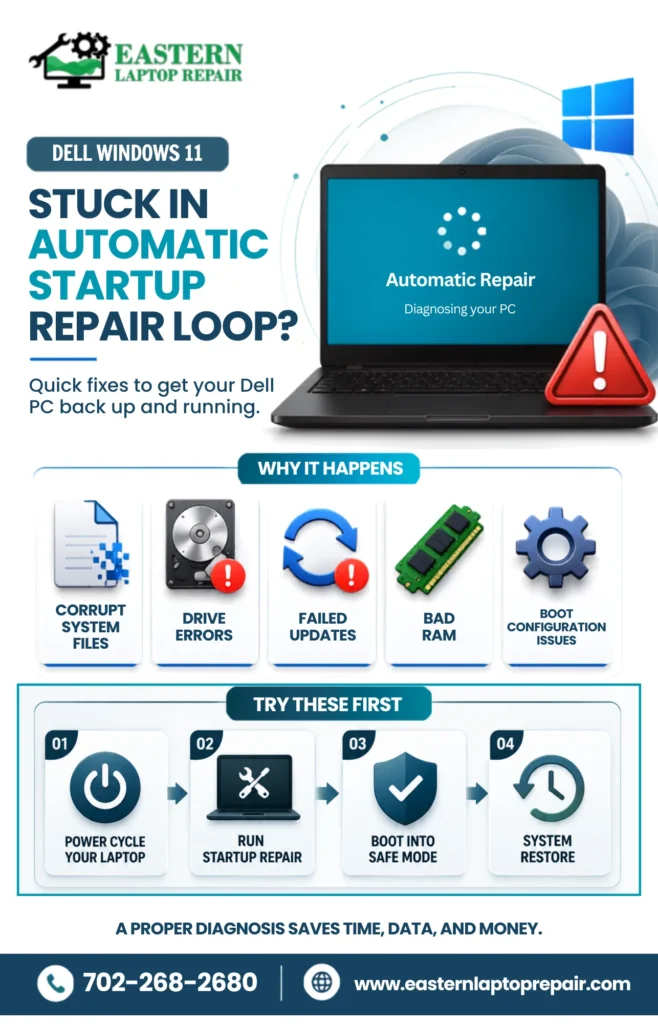
If your computer is stuck in the Dell Windows 11 Automatic Startup Repair Loop, don’t panic. This issue usually happens when Windows cannot complete the boot process because of corrupted system files, damaged boot records, failing hardware, or software conflicts.
Fortunately, there are several troubleshooting methods you can try before replacing your computer. This guide explains the most effective fixes, when they work, and when professional repair services are the better option.
What Causes the Dell Windows 11 Automatic Startup Repair Loop?
The Dell Windows 11 Automatic Startup Repair Loop usually appears because Windows cannot load essential startup files.
Common causes include:
- Corrupted Windows system files
- Damaged boot configuration
- Missing boot records
- Registry corruption
- Failed Windows updates
- SSD or HDD errors
- Bad RAM
- Motherboard problems
- Malware infection
- BIOS issues
How Does Windows Startup Repair Fix the Problem?
Startup Repair scans your system for boot-related problems.
It automatically repairs:
- Missing system files
- Corrupted boot configuration
- Master Boot Record (MBR)
- Boot Configuration Data (BCD)
- Startup registry errors
If the issue is software-related, Startup Repair often resolves it automatically.
How Do You Fix the Dell Windows 11 Automatic Startup Repair Loop?
Follow these troubleshooting methods in order. After completing each step, restart your laptop to check whether Windows boots normally before moving on to the next solution.
Step 1. Power Cycle Your Laptop
- Disconnect the charger.
- Remove the battery if possible.
- Hold the power button for 15 seconds.
- Reconnect everything.
- Turn the laptop back on.
Step 2. Boot into Safe Mode
- Restart the PC.
- Press F8 repeatedly.
- Open Advanced Boot Options.
- Select Safe Mode.
If Windows starts normally, recently installed software may be causing the issue.
Step 3. Run Startup Repair
Boot from a Windows installation USB.
Go to:
Repair your computer → Troubleshoot → Advanced Options → Startup Repair
Allow Windows to complete the repair.
Step 4. Restore Windows
Inside Windows Recovery Environment:
Troubleshoot → Advanced Options → System Restore
Choose the latest restore point before the issue started.
Step 5. Reset Windows
Navigate to:
Troubleshoot → Reset this PC
Choose either:
- Keep my files
- Remove everything
Perform a full reset only after backing up important data.
Step 6. Check for Hardware Problems
Press F12 during startup.
Open Dell Diagnostics.
Run a complete hardware scan to test:
- RAM
- SSD
- Hard drive
- CPU
- Motherboard
Replace any failing hardware components.
If your computer has storage issues along with boot problems, learn more about our hard drive repair services to prevent permanent data loss.
Step 7. Run CHKDSK
Open Command Prompt.
Run:
chkdsk /f /r C:
This scans the drive and repairs file system errors.
Step 8. Disable Automatic Repair
Open Command Prompt inside WinRE.
Run:
bcdedit /set {current} recoveryenabled No
bcdedit /set {current} bootstatuspolicy ignoreallfailures
Restart your computer.
Step 9. Update Your BIOS
Download the latest BIOS version for your Dell model from Dell’s official support page.
A BIOS update may resolve firmware-related boot issues.
Step 10. Reinstall Windows
If nothing else works, reinstall Windows using a bootable USB.
Remember to back up your files first because installation erases everything.
How Can You Back Up Your Files Before Repair?
Before attempting major repairs:
- Open Settings
- Select Update & Security
- Choose Backup
- Configure automatic backups
- Save files to an external drive
Regular backups protect important files if Windows becomes unbootable.
Want extra peace of mind before repairing your laptop? Check out: What Is the Best Way to Protect Data Before Repair? Simple Steps to Keep Your Information Safe for practical tips to keep your information secure.
Why Doesn’t Startup Repair Always Work?
Startup Repair has limitations.
It cannot repair:
- Failed SSDs
- Dead hard drives
- Faulty RAM
- Motherboard failures
- Severe malware damage
- Physical hardware defects
In these situations, professional diagnosis is usually required.
When Should You Visit a Professional Computer Repair Shop?
Seek professional help if:
- Startup Repair fails repeatedly
- Blue Screen errors continue
- BIOS cannot detect the drive
- Windows refuses to boot
- Dell Diagnostics reports a hardware failure
- The SSD or hard drive makes unusual noises
Professional technicians can accurately identify hardware faults and, whenever possible, recover your data.
| Stuck in a Dell Startup Repair Loop? Don’t let a boot loop keep you from your work. Our certified technicians can quickly diagnose the issue and restore your Dell laptop with reliable, professional repair. Contact Experts |
Conclusion
The Dell Windows 11 Automatic Startup Repair Loop can be frustrating, but it doesn’t always mean your laptop is beyond repair. Start with simple solutions like Startup Repair, Safe Mode, and System Restore before moving on to hardware diagnostics or reinstalling Windows.
If the problem persists, professional technicians can accurately identify the cause and restore your Dell laptop while helping protect your valuable data.
Frequently Asked Questions
Can a failing SSD cause an automatic repair loop?
Yes. A damaged SSD can prevent Windows from reading boot files, causing continuous startup repair.
Will Startup Repair delete my files?
No. Startup Repair only attempts to repair Windows startup files and does not erase personal data.
Can bad RAM cause boot loops?
Yes. Faulty RAM often causes repeated crashes, Blue Screens, and startup repair loops.
Should I reinstall Windows immediately?
No. Try Startup Repair, Safe Mode, System Restore, and disk checks first. Reinstall Windows only if other solutions fail.
How do I know if the motherboard is damaged?
If Dell Diagnostics reports motherboard errors or your laptop still fails to boot after replacing storage and RAM, the motherboard may require professional repair.